CSV を新規作成
Create a new CSV
フォルダを右クリック、またはコマンドパレットから空の CSV を作成。編集モードで開き、セル・行・列を増やせます。
Right-click a folder or use the command palette to create a blank CSV. It opens in Edit so you can add cells, rows, and columns.
TableCSV は Obsidian 用プラグイン。フォルダから CSV を新規作成し、表で開いてフィルター・列ソート(最下行/先頭列の固定)・列の型(テキスト、数値、日付、チェック)・列幅の調整・絞り込みの書き出し・編集(矢印/Tab/Enter、やり直し、範囲のコピー/切り取り/クリア)、OS クリップボードでのコピー/貼り付けができます。大きい表は見えている行から描きます。ネットワーク不要・無料(MIT)。
TableCSV is an Obsidian plugin. Create a new CSV from a folder, then open it as a table with filter, column sort, column types (text, number, date, checkbox), pin last row or first column, column resize, export filtered rows, undo or redo, copy, cut, or clear a selected range, and OS clipboard copy/paste. Edit with Tab, Enter, or arrows. Large tables draw on-screen rows first. No network requests. Free & MIT.
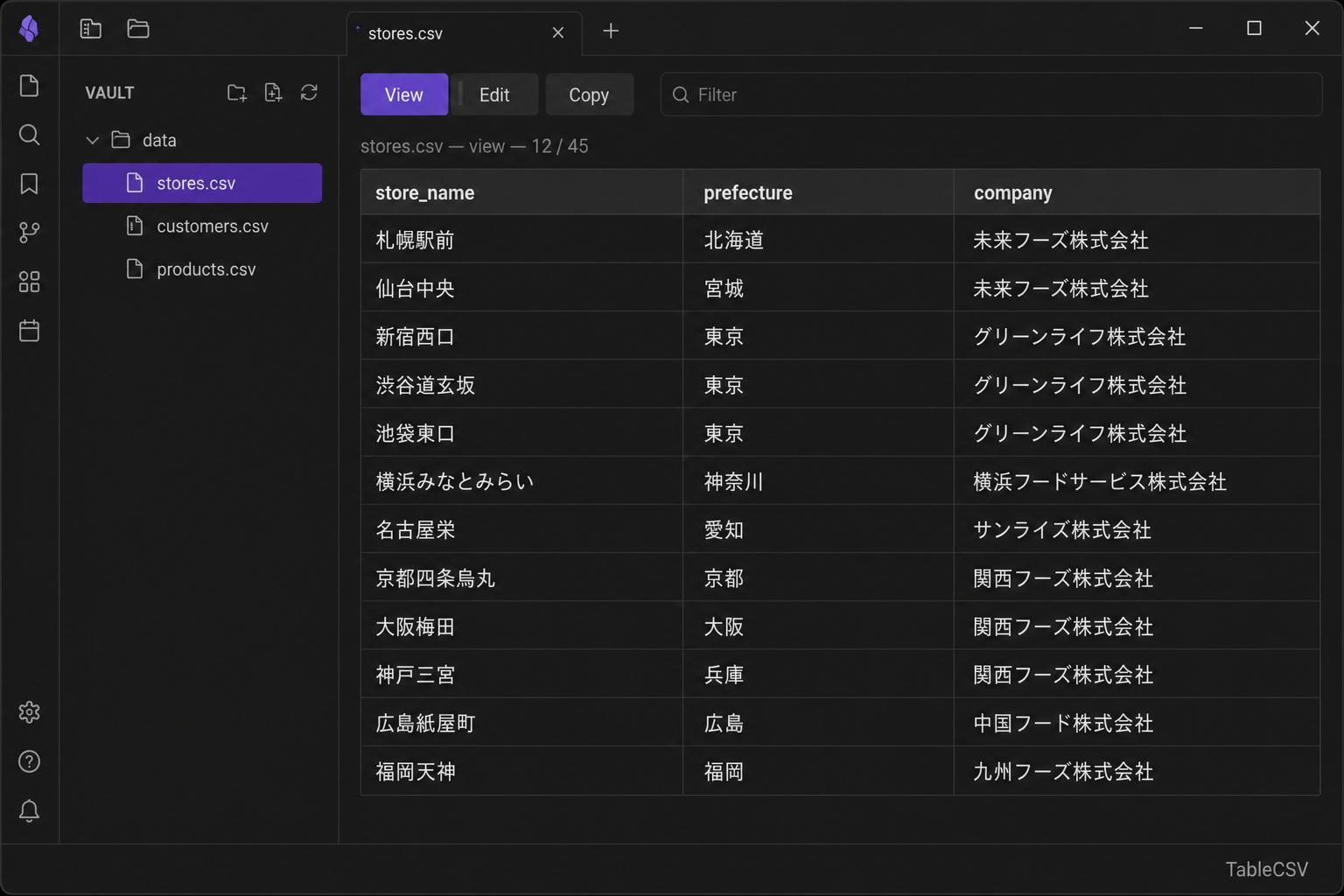
実際の Obsidian 上での表示イメージ Actual view inside Obsidian
Vault 内の CSV を表で確認・編集。Excel との行き来はクリップボードだけ。
Review and edit CSV in your vault. Move data to Excel with the system clipboard.
フォルダを右クリック、またはコマンドパレットから空の CSV を作成。編集モードで開き、セル・行・列を増やせます。
Right-click a folder or use the command palette to create a blank CSV. It opens in Edit so you can add cells, rows, and columns.
.csv を読みやすい表として表示。行の区切りが一目で分かります。
Render .csv files as readable tables with clear row separation.
スクロールしても列名が見える。表だけスクロールするので、見出しの上に隙間が出ません。
Column headers stay visible while scrolling. Only the table scrolls—no gap above the header.
閲覧モードでセル内テキストを絞り込み。ファイルは変更しません。
Narrow rows in View mode without changing the file.
列見出しをクリックして昇順・降順・解除。最下行を固定にすると、合計行などを並べ替え対象外にできます。
Click a header to sort ascending, descending, or clear. Pin last row keeps totals out of sort.
横に長い表でも、左端の列(店舗名など)を残したままスクロールできます。
Keep the leftmost column visible when scrolling sideways on a wide CSV.
列見出しの端をドラッグして幅を決めます。そのファイルの幅を覚えます。
Drag a column header edge to set the width. That file keeps the widths.
見出しと、いま表示している行を同じフォルダの新しい CSV にします。元のファイルは変わりません。
Save the header plus currently visible rows as a new CSV in the same folder. The original file is unchanged.
列見出しを右クリックして、テキスト・数値・日付・チェックを指定。ファイルごとに覚え、CSV には書きません。数値・日付は値で並べ替え、チェックはチェックボックスになります。
Right-click a header to set text, number, date, or checkbox. Remembered per file, not written into the CSV. Number and date columns sort by value. Checkbox columns use a tick box.
編集は Tab / Enter / 矢印でセルを移動。Shift+矢印で範囲。Esc で解除。変換中は動きません。
In Edit, Tab / Enter / arrows move between cells. Shift+arrow extends a range. Escape clears it. IME composition is left alone.
画面に見えている行から描きます。残りはスクロールしたときに出ます。絞り込み・並べ替え・コピー・書き出しは表全体が対象です。
Draw on-screen rows first. The rest wait until you scroll. Filter, sort, copy, and export still use the full table.
セル・行・列を直して、同じ CSV に保存します。Tab / Enter / 矢印で隣のセルへ進みます。左右は端にいるとき、上下は常に。Shift+矢印で範囲。Esc で解除。変換中は動きません。取り消した変更はやり直せます。
Change cells, rows, and columns, then save to the same CSV. Tab / Enter / arrows move to the next cell. Left/right at the caret edge; up/down always. Shift+arrow extends a range. Escape clears it. IME composition is left alone. Redo brings back an undone change.
OS のクリップボードへ。ドラッグまたは Shift+クリックで範囲を選ぶと、コピー・切り取り・クリアはその範囲です。Excel・メモ帳・TextEdit に貼り付けできます。
Copy to the OS clipboard. Drag or Shift-click a range, then copy, cut, or clear it. Paste into Excel, Notepad, or TextEdit.
編集モードで、選んだセルから Excel・Word・TSV の範囲を貼れます。10×10 は 10×10 のまま入ります。
In Edit mode, paste an Excel, Word, or TSV range from the selected cell. A 10×10 stays 10×10.
ネットワーク通信なし。Vault 内のデータは PC 上で完結します。
No network requests. Your data stays on your device.
編集: 矢印でセル移動(左右は端、上下は常に)。Shift+矢印で範囲。Esc で解除。
Edit: arrow keys move between cells (left/right at the edge; up/down always). Shift+arrow extends a range. Escape clears it.
見出しとデータの列幅を揃える。列ごとに同じ幅を使い、見出しがセルの上に来る。
Keep header and body column widths the same so labels sit over their cells.
列見出しを右クリックして型(テキスト、数値、日付、チェック)を指定。CSV には書かない。チェック列はチェックボックス。
Right-click a header to set the column type (text, number, date, checkbox). Not written into the CSV. Checkbox columns use a tick box.
大きいファイルの縦スクロールを修正。行の高さは表の外で確保し、スライダーが動く。
Fix vertical scrolling for large files so the scrollbar can move.
閲覧・編集: 画面に見えている行から描く。残りはスクロールしたときに出る。
View and Edit: draw on-screen rows first. The rest follow when you scroll.
編集: 選んだ範囲を切り取る・クリア。行と列は残る。元に戻すで値が戻る。
Edit: Cut or Clear a selected range. Rows and columns stay. Undo brings the values back.
編集: やり直す(取り消した変更を戻す)。ドラッグまたは Shift+クリックで範囲を選び、その範囲をコピー。
Edit: Redo an undone change. Drag or Shift-click to select a range; Copy takes that range.
編集: 元に戻す。閲覧・編集: 列見出しの端をドラッグして幅を決める。そのファイルの幅を覚える。
Edit: Undo the last change. View and Edit: drag a column header edge to set the width; remembered per file.
ドイツ式 CSV: 小数カンマ(1,5)が多くても ; 区切りとして読む。ドイツ語のときだけドイツ式の数値並べ替え。
German/EU CSV: semicolon files stay intact even when decimal commas (1,5) outnumber semicolons. German number sort only when the UI or OS is German.
編集: Tab / Enter でセル移動。変換中(日本語など)は動かず、変換を確定しただけでは次のセルへ進みません。
Edit: Tab / Enter move between cells. IME composition is left alone — confirming a conversion does not move to another cell.
先頭列を固定と、絞り込みを書き出す(見出しと表示中の行を新しい CSV に。元ファイルは変わらない)。
Pin first column and Export filtered (header plus visible rows as a new CSV; original file unchanged).
編集: 選んだセルから Excel・Word・TSV の範囲を貼り付け。足りない行・列は足します。
Edit: paste an Excel, Word, or TSV range from the selected cell. Extra rows and columns are added as needed.
閲覧・編集: 表を画面内に収め、はみ出すときは縦横のスクロールバーを出します。
View and Edit: keep the table in the pane and show scrollbars when it is larger than the window.
フォルダの右クリック、またはコマンドパレットから CSV を新規作成。新規ファイルは編集モードで開きます。
Create a new CSV from a folder or the command palette. New files open in Edit.
区切り文字・引用スタイルを保持。内容が同じならファイルを書き直さない。UI は日本語・英語・ドイツ語。
Keep delimiter and quoting style. Unchanged files are not rewritten. UI in Japanese, English, and German.
スクロール時に列見出しの上に隙間が出る表示を修正。ツールバーは固定、表のみスクロール。
Fix gap above sticky headers when scrolling. Toolbar stays fixed; only the table scrolls.
最下行を固定 — 合計行など、並べ替え不要な最後の1行を常に表の下に残せます(View モード)。
Pin last row — Keep a totals row at the bottom while sorting other rows in View mode.
閲覧モードで列見出しクリック並べ替え(昇順 → 降順 → 解除)。
Column header sort in View mode (asc → desc → clear).
Obsidian → 設定 → Community plugins →「Turn on community plugins」
Obsidian → Settings → Community plugins → Turn on community plugins
Browse →「TableCSV」で検索 → Install → Enable
Browse → search TableCSV → Install → Enable
フォルダを右クリックして CSVを新規作成。既存の .csv をクリックしても表ビューが開きます。
Right-click a folder and choose New CSV. You can also click an existing .csv to open the table view.
Copy で OS のクリップボードへ。Edit にして Paste すると、Excel などの表を CSV にできます。
Copy uses the OS clipboard. Switch to Edit and Paste to bring a table from Excel into CSV.
TableCSV は無料・MIT ライセンスです。役に立ったら、コーヒー1杯分の応援が今後のアップデートの励みになります。
TableCSV is free and MIT licensed. If it helps your vault, a coffee keeps the updates coming.
